NVIDIA vGPU Configuration#
VergeOS allows seamless utilization of NVIDIA's vGPU platform to assign virtualized GPU devices among tenants and VMs.
New in 26.1.3
VergeOS now includes expanded NVIDIA feature support, providing increased flexibility for dividing GPU devices across workloads
-
Heterogeneous vGPU profiles - use multiple traditional vGPU profiles within the same device. Requires NVIDIA driver version 17.2 or later and device support.
-
MIG profiles - a single GPU can be partitioned into up to seven hardware-isolated instances, for guaranteed service to multiple simultaneous workloads. Requires device support; latest NVIDIA data-center driver recommended.
NVIDIA vGPU functionality requires NVIDIA's commercial vGPU licensing. This applies to both traditional vGPU and MIG‑backed vGPU configurations.
Overall workflow#
These are the high-level steps required for VergeOS NVIDIA vGPU configuration:
-
Upload Driver Upload the bundled NVIDIA driver to the VergeOS environment.
-
Create a Resource Group Generate a resource group based on selected physical GPU device(s), selecting a MIG or traditional vGPU profile. This creates a pool of assignable vGPU devices. Multiple resource groups can be created per physical device to provide a mix of different vGPU types for different use cases.
-
Load Drivers Each node should be placed into maintenance mode to load the NVIDIA driver. (Node reboot may be necessary if IOMMU has not been enabled yet and/or first-time driver load.)
-
Add Devices to Individual VMs Add a device to a VM, selecting the created resource group. This allows the VM to pull from the pool of available virtual GPU devices within the resource group.
-
Share to Tenants Share devices to individual tenants, allowing them to add the vGPU devices to their own VMs.
The following sections provide step-by-step instructions to enable and assign NVIDIA vGPU resources within VergeOS.
Prerequisites#
Before starting, ensure the following are in place:
- NVIDIA vGPU-capable GPU installed in one or more VergeOS nodes (see NVIDIA Supported GPUs)
- IOMMU / VT-d / SR-IOV enabled in the host BIOS — if not yet enabled, plan for a node reboot during this process (follow proper Maintenance Mode procedures).
- NVIDIA vGPU software license — access to the NVIDIA licensing portal to obtain drivers
- VergeOS admin access to the Resource Manager and node configuration
- Familiarity with PCI Passthrough Risks and Precautions
Host Installation/Configuration#
-
Obtain the appropriate NVIDIA Linux-KVM driver for your GPU hardware. NVIDIA vGPU drivers can be downloaded from your NVIDIA licensing portal or by registering for an NVIDIA free evaluation: https://nvidia.com/en-us/data-center/resources/vgpu-evaluation.
VergeOS supports bundle-version NVIDIA drivers. For a list of currently supported NVIDIA drivers, navigate to Resource Manager > Groups > New. Set Type=NVIDIA vGPU and click the button to view compatible third-party drivers. Typically, you will want to use the most recent driver in this list that is compatible with your NVIDIA hardware.
-
Upload the NVIDIA bundle driver to the VergeOS vSAN. See Uploading to the vSAN (Files) for upload instructions.
The following instructions configure selected vGPU device(s) for virtual function passthrough by automatically creating necessary resource rules for each selected device and attaching the device(s) to a resource group. This creates a pool of virtual function devices that can be assigned to tenants and virtual machines to draw from. For more information about resource groups and resource rules, see: Device Passthrough - Overview
-
Navigate to the Resource Manager Dashboard (Infrastructure > Resources from the top menu) -OR- Navigate to a specific node where the NVIDIA hardware is installed (Infrastructure > Nodes).
- Click the PCI DEVICES card on the dashboard.
- Select the desired NVIDIA physical device(s). To easily locate the desired NVIDIA card(s), use the search bar to filter by name ("nvidia") or Type: Display controller.
- Click Make Resource on the left menu.
- Select an existing vGPU resource group -OR- select --New Group-- to attach the device.
Resource Group Fields:
- Name: label used to identify the resource group (i.e. device pool); use a descriptive name so that users are easily able to identify the type of virtual devices that will be available in this group.
- Type: should be set to NVIDIA vGPU (This field is auto-set if the resource group was initiated based on an NVIDIA device.)
- Description: optional field to provide more administrative text about the resource group
- Class: select vGPU. This field is only used to apply an associated dashboard icon to the resource group, and does not affect functionality
-
NVIDIA vGPU Profile: set this to the vGPU type that you want this resource group to create
If the profile list is empty, skip this field for now and click Submit to save the resource group. Follow instructions below to Reload Drivers on at least one node, then return to the resource group (Infrastructure > Resources > Groups > double-click the group > Edit) to select the profile.
-
The Driver dropdown list will contain all NVIDIA vGPU drivers (.zip) found in the Files section. The appropriate driver will need to be uploaded to the vSAN before it can be selected (Steps 1-2 above). Select the appropriate driver.
- Click Submit to save the resource group. After the resource group is selected or a new one is created, a Success message should appear indicating resource rules were created for the device(s).
- If a driver has not been previously loaded or IOMMU is not yet enabled, reboot the associated node(s) in Maintenance Mode before continuing.
- After the node(s) are rebooted, navigate to the NVIDIA vGPU resource group just created (Infrastructure > Resources > Groups > double-click the group).
- Click Edit on the left menu.
- Select NVIDIA vGPU Profile: Traditional or MIG (Tabs below provide associated instructions):
- NVIDIA vGPU Profile: select the desired traditional profile.
- Total vGPU Instances: number of virtual instances to create with the given profile.
- Scheduler Policy, Frequency, Averaging Factor, Time Slice Length (ms), Strict Round Robin: NVIDIA-specific settings — consult NVIDIA documentation for specific performance tuning.
- Driver: pre-populated from previous step.
Flexible Profile Configuration
Starting in version 26.1.3, VergeOS supports heterogeneous vGPU profiles. This enables greater flexibility, allowing a physical device to host a mix of different profile types and sizes simultaneously (requires NVIDIA driver version 17.2 or later and device support).
- NVIDIA only allows mixing vGPU profiles that share the same architecture and belong to the same compatibility group - consult NVIDIA documentation for more information.
- Combined profiles must fit within the GPU's total framebuffer (available VRAM).
- MIG and traditional profiles cannot be mixed on the same physical device.
- NVIDIA SMI queries can provide information about vGPU profiles compatible with those that have already been configured for a device. See Troubleshooting Tips for more information.
Example: Using Heterogeneous Profiles
- Physical device: The NVIDIA L40S provides 48 GB of framebuffer memory
- Multiple profile types are implemented for the device:
- L40S-24C: One compute‑optimized vGPU instance using 24 GB
- L40S-12Q: One graphics‑optimized vGPU instance using 12 GB
- L40S-4C: Three lightweight compute vGPU instances using 4 GB each (12GB total)
- A separate resource group (device pool) is created for each profile type.
- Together, these heterogeneous profiles allocate the entire framebuffer while supporting multiple workload types (compute, graphics, inference workloads) on the same physical GPU.
- Remaining capacity: This configuration uses the entire 48 GB framebuffer, leaving no remaining capacity for additional vGPU profiles.
- NVIDIA vGPU Profile: select the desired MIG profile.
Multiple profiles used for a single device
- Combined profiles must fit within the GPU's total framebuffer (available VRAM).
- MIG and traditional profiles cannot be mixed on the same physical device.
- MIG GPU Instances: (maximum is listed in the description) number of MIG instances to create.
- Total vGPU Instances: default=0 (maximum) - this setting determines the number of assignable virtual GPU instances per MIG partition.
- Leave this value at 0 to automatically create the maximum number of virtual GPUs for the selected MIG profile.
- Set the value to 1 to create one single virtual GPU using the entire MIG slice.
- Setting a value other than 0 or 1 will result in unused capacity inside the MIG slice.
- Driver: pre-populated from previous step.
Example: MIG instance further divided into virtual instances
- Physical device: The RTX Pro 6000 Blackwell DC provides 96 GB of framebuffer memory
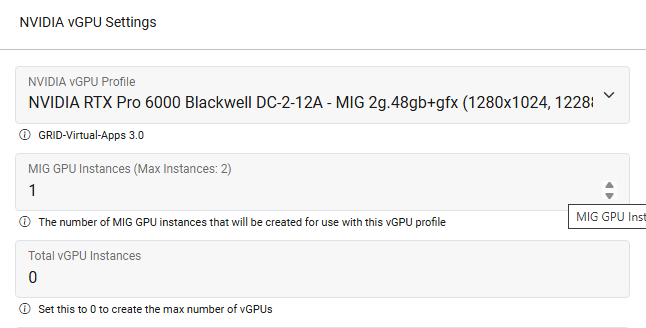
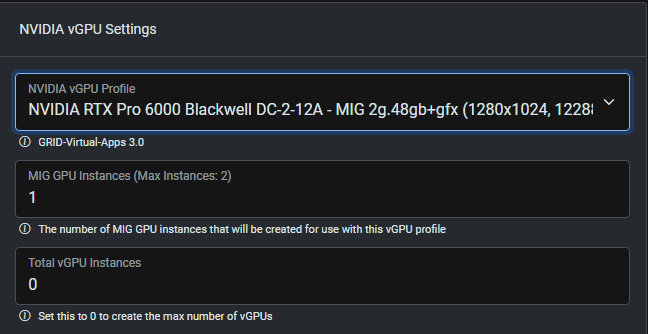
- MIG profile added: Selecting the profile NVIDIA RTX Pro 6000 Blackwell DC‑2‑12Q‑MIG (2g.48gb+gfx) and specifying MIG GPU Instances:1 creates one MIG slice with 48 GB of dedicated framebuffer. This MIG slice supports four vGPU instances, each using 12 GB (the “12Q” profile)
- Remaining capacity: After allocating this 48 GB MIG slice, 48 GB of framebuffer remains available for additional MIG profiles
- One or more additional resource groups can be created to utilize the remaining capacity with different MIG profile types.
Guest Driver ISO#
The following guest driver settings apply to both Traditional and MIG vGPU configurations.
- Driver ISO: Use the Make Guest Driver ISO option to automatically create a guest driver installer for your VMs. If you have already created guest drivers, select the ISO in the next step.
- The Driver ISO file specifies an ISO file that can be attached to consuming VMs, providing a convenient way to access client drivers for installation within the guest operating system. (Select the Attach Guest Drivers option when attaching the device to a VM or tenant.)
If you selected the Make Guest Driver ISO option, leave the Driver ISO field set to -- None --; the system will automatically create the ISO file (based on the bundle driver selected) for installing client drivers to VMs.
Reload Drivers#
- When resource group configuration is complete and has been submitted, place the node into Maintenance Mode and click Reload Drivers.
- Monitor the Node Dashboard logs (bottom of page) to verify the driver is successfully installed before disabling maintenance mode.
Tip
The resource group dashboard contains the resource rules that were auto-generated based on your selected NVIDIA devices. You can click an individual rule to view configuration detail. A system-created rule can be modified as needed. For example, the Node filter can be changed to -- None -- to include matching devices from all nodes; the slot filter can be removed or modified to accommodate devices that may reside on different slots within the same node or across different nodes. Information regarding resource rules is available at: Device Passthrough Overview - Resource Rules
VM/Guest Configuration#
- Navigate to the VM dashboard (from the top menu: Virtual Machines > List > double-click desired VM in the listing)
- Click Devices on the left menu.
-
Click New on the left menu.
You can also attach devices to a VM via Resource Manager; this method allows for adding multiple devices to the VM at once. From Resource Group dashboard > double-click the desired vGPU Group > View Machine Devices > New; select the VM from the Machine dropdown list.
Device Entry Form Fields#
- Name: provide a name to identify the type of vGPU/profile -OR- leave blank to allow the system to auto-generate a name for the instance.
- Type: select NVIDIA vGPU.
- Description (optional): additional text can be entered here for administrative purposes.
- Resource Group: select the appropriate NVIDIA vGPU resource group from the dropdown list. (The resource group list will display the number of devices in the group that are currently available.)
- Count: indicate the number of vGPU devices to attach to the VM. (This option is only available when device entry is accessed via Resource Manager.)
- Attach Guest Drivers: if a guest driver ISO was specified for the resource group, you can check this option to automatically attach a CD-ROM drive, loaded with NVIDIA guest drivers, to the VM.
- Frame Rate Limit: to set a cap on frames per second. Recommended refresh rate settings depend on your specific workload. Lower refresh rates reduce unnecessary overhead on the vGPU. If it will purely be used for compute workloads (like ML/inference), and not for any graphics/display purposes, frame rate limit can be set to 0.
- Disable Console VNC: this option can be used when the vGPU should be used for the primary display, e.g. access solely via RDP.
- Advanced NVIDIA settings; consult NVIDIA documentation for information on the following options:
- Enable Unified Memory
- Enable NVIDIA CUDA Toolkit Debuggers
- Enable NVIDIA CUDA Toolkit Profiles
- When fields are completed, click Submit to complete adding the new device.
- The VM will need a restart in order to attach the device. From the VM dashboard, click the Restart link on the message that appears at the top of the dashboard, or click Restart on the left menu.
- Install required NVIDIA guest driver(s); required drivers will vary depending on specific GPU model and guest OS version. If the option was selected to attach guest drivers, a CD-ROM drive will be available containing necessary NVIDIA drivers for install.
-
Consult NVIDIA documentation for client vGPU licensing requirements/instructions.
NVIDIA client licensing may involve generating a client config token on the NVIDIA licensing server that will need to be downloaded into the VM guest, followed by a VM reboot.
-
Verify the vGPU is detected — once guest drivers are installed and the VM is rebooted, run
nvidia-smiinside the VM to confirm the virtual GPU is recognized and operational.
Share an NVIDIA vGPU to a Tenant#
NVIDIA vGPU devices can be passed to a tenant for the tenant to pass to its own VMs. When you pass through devices to a tenant, a new resource group is created within the tenant.
Devices shared to a tenant are thick-provisioned (i.e. the tenant then owns the devices, so they cannot be assigned to other VMs or tenants, even when not in use.)
- Navigate to the desired tenant dashboard (from the top menu: Tenants > List > double-click the tenant within the list.)
- Click Nodes on the left menu.
- Double-click one of the tenant nodes.
- Click Devices on the left menu.
- Click New on the left menu.
- Reference the Device Entry Form Fields above.
- When fields are completed, click Submit to complete adding the new device.
- The device will now be available to attach to tenant VMs. Follow VM/Guest Configuration instructions above.
Troubleshooting Tips#
-
Reload Drivers: Any change to a resource group requires a driver reload. Follow reload prompts at the top of the node dashboard to place the node into Maintenance Mode and reload drivers. Monitor node logs to verify the driver successfully loaded before disabling maintenance mode. Repeat driver reload for each applicable node.
-
NVIDIA SMI (System Management Interface): This is a powerful NVIDIA tool for troubleshooting configurations accessible from the VergeOS UI. Access Node Diagnostics, select Query: NVIDIA SMI and the desired command to provide summary or detailed query information about your configured NVIDIA vGPU devices.