> For the complete documentation index, see [llms.txt](https://docs.verge.io/llms.txt). Markdown versions of documentation pages are available by appending `.md` to page URLs; this page is available as [Markdown](https://docs.verge.io/knowledge-base/zh/automation-api/automated-task-example-1.md).
# 自动化任务示例 - 按需自动开启/关闭虚拟机
自动化任务的配置示例,通过在指定用户登录时开启虚拟机、在注销时或在计划时间(如下班时间结束)关闭虚拟机,以节约资源。
## 自动化任务示例
{% hint style="info" %}
**要点**
* 该 ***VergeOS 任务引擎*** 允许您自动执行由特定事件或计划时间触发的操作。使用模块化、可重复使用的组件(任务、事件、计划和 Webhook),您可以轻松配置适合您环境的自动化。
* 以下示例展示了标签、任务、事件和计划如何结合使用,以便在需要时无缝地让工作负载上线和下线,从而提高资源效率。
{% endhint %}
#### 使用场景
用户 JThompson 依赖多台由 GPU 驱动的虚拟机来进行 3D 建模和动画制作。这些 VM 会消耗大量计算和内存资源,让它们在空闲时持续运行是浪费。
通过配置自动化,仅在需要时才为它们开机——当 JThompson 登录系统时启动,并在用户注销或在计划时间(例如每周五下午 6 点)关闭它们——我们可以确保资源在恰好需要时可用,同时避免不必要的使用。
自动化包括创建标签、定义任务,以及附加事件和计划触发器。以下步骤将引导您完成完整配置:
{% hint style="info" %}
**1. 创建标签类别和标签**
**标签类别用于组织相关标签。然后,我们在该类别中创建一个特定标签,用于指定要通过此自动化控制的 VM。**
***系统 > 标签 > 新建***
 **双击上面创建的类别 >** ***新建***
 {% endhint %}
{% hint style="info" %}
**2. 将标签分配给需要自动开/关机的 VM**
**这将标识应由自动化控制的 VM。**
***虚拟机 > 列表 >*** **选择 VM >** ***分配标签*** **> 从上方选择标签**
{% endhint %}
{% hint style="info" %}
**2. 将标签分配给需要自动开/关机的 VM**
**这将标识应由自动化控制的 VM。**
***虚拟机 > 列表 >*** **选择 VM >** ***分配标签*** **> 从上方选择标签**
 这些 VM 现在会在 ***“标签”*** 列中显示所分配的标签。
 {% endhint %}
{% hint style="info" %}
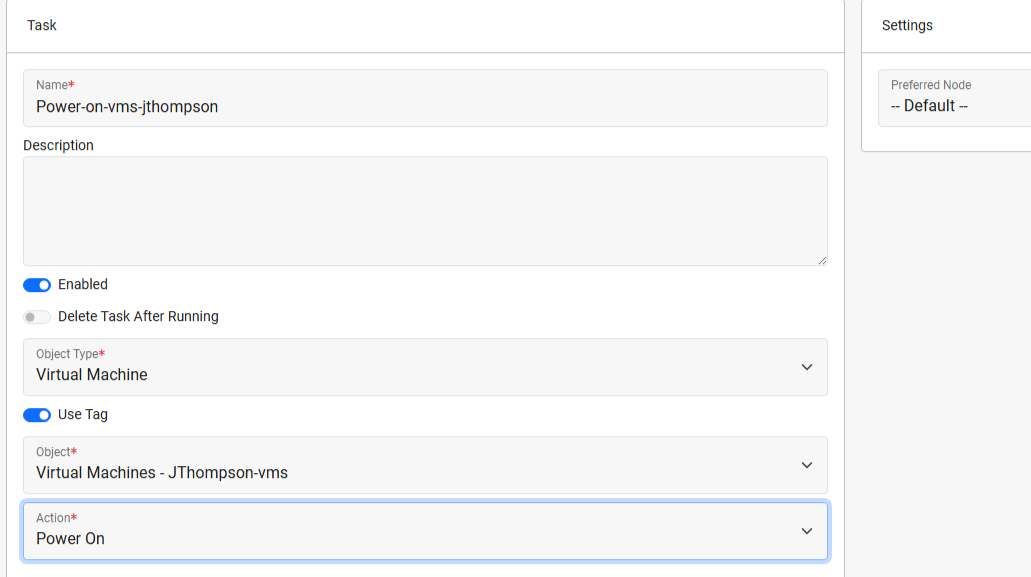
**3. 创建一个用于开启 VM 的任务**
**此任务定义了启动已标记虚拟机的操作。**
***系统 > 任务仪表板 > 新建任务***
{% endhint %}
{% hint style="info" %}
**3. 创建一个用于开启 VM 的任务**
**此任务定义了启动已标记虚拟机的操作。**
***系统 > 任务仪表板 > 新建任务***
 {% endhint %}
{% hint style="info" %}
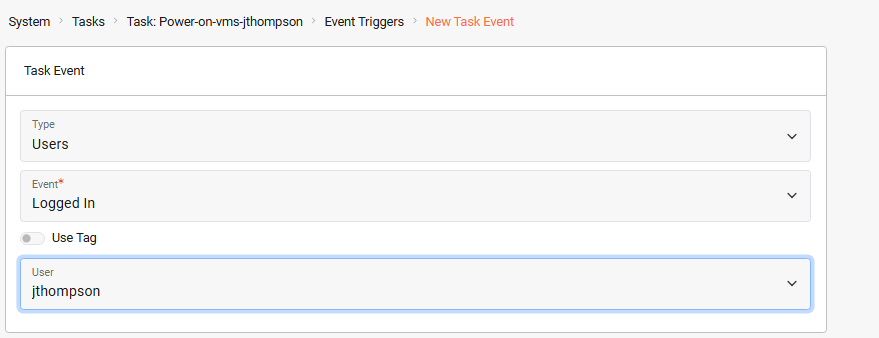
**4. 配置用户登录事件触发器**
**在这里,我们定义将调用该任务的活动(JThompson 登录系统)。**
从新任务仪表板中: ***事件触发器 > 新建***
{% endhint %}
{% hint style="info" %}
**4. 配置用户登录事件触发器**
**在这里,我们定义将调用该任务的活动(JThompson 登录系统)。**
从新任务仪表板中: ***事件触发器 > 新建***
 {% endhint %}
{% hint style="info" %}
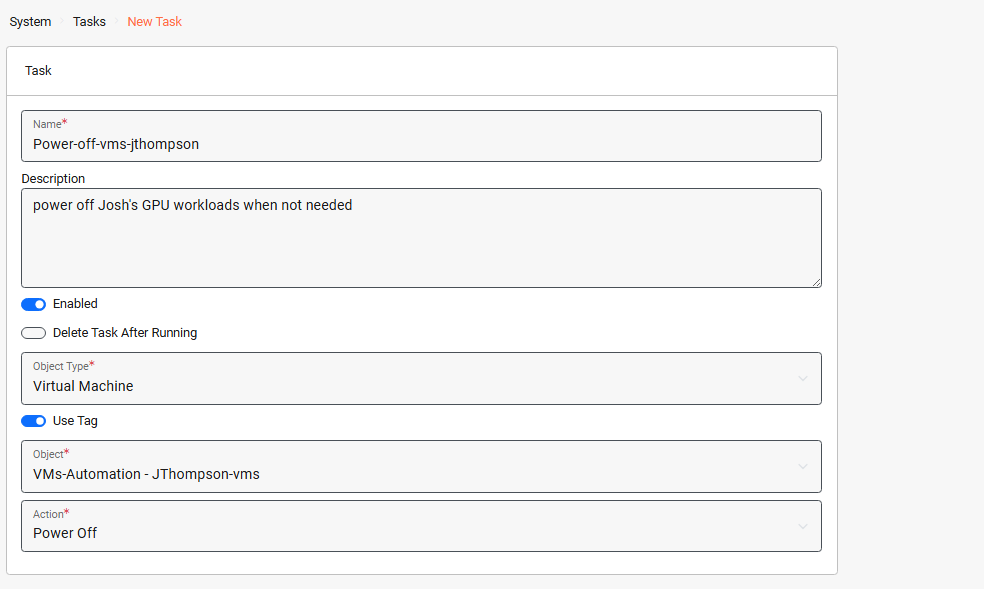
**5. 创建一个用于关闭 VM 的任务**
**这定义了关闭已标记虚拟机的操作。**
***系统 > 任务仪表板 > 新建任务***
{% endhint %}
{% hint style="info" %}
**5. 创建一个用于关闭 VM 的任务**
**这定义了关闭已标记虚拟机的操作。**
***系统 > 任务仪表板 > 新建任务***
 {% endhint %}
{% hint style="info" %}
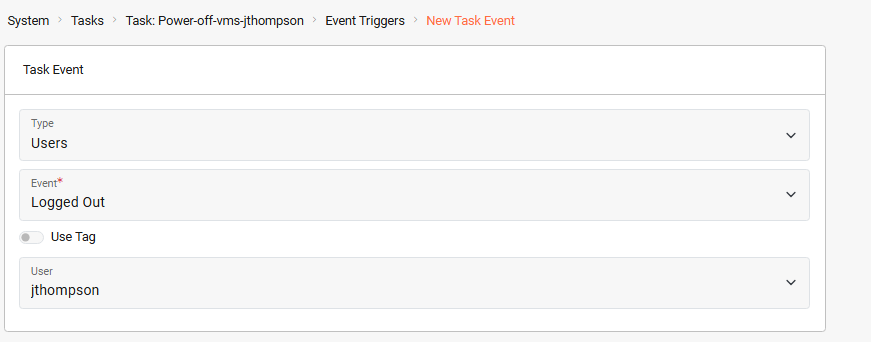
**6. 配置用户注销事件触发器**
**这会将任务配置为在 JThompson 注销时启动。**
从新任务仪表板中: ***事件触发器 > 新建***
{% endhint %}
{% hint style="info" %}
**6. 配置用户注销事件触发器**
**这会将任务配置为在 JThompson 注销时启动。**
从新任务仪表板中: ***事件触发器 > 新建***
 {% endhint %}
{% hint style="info" %}
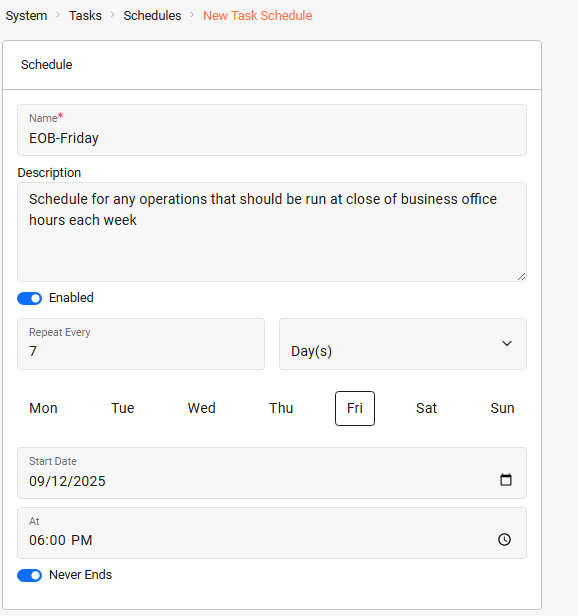
**7. 创建每周五下午 6:00 的计划**
**创建计划使我们能够定义特定日期/时间。创建后,该计划可应用于我们的任务和其他任务。**
***系统 > 任务仪表板 > 新建计划***
{% endhint %}
{% hint style="info" %}
**7. 创建每周五下午 6:00 的计划**
**创建计划使我们能够定义特定日期/时间。创建后,该计划可应用于我们的任务和其他任务。**
***系统 > 任务仪表板 > 新建计划***
 {% endhint %}
{% hint style="info" %}
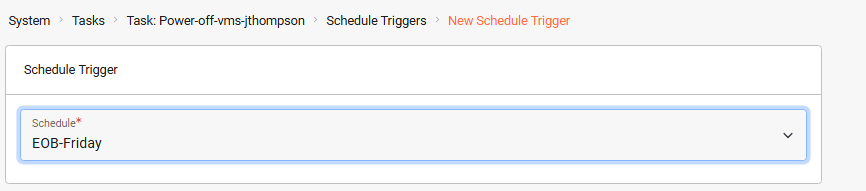
**8. 为关机创建计划触发器**
**我们将该计划(每周五下午 6 点)应用于该任务,以便每周五晚上自动关闭 VM。**
从新任务的仪表板中: ***计划触发器 > 新建***
{% endhint %}
{% hint style="info" %}
**8. 为关机创建计划触发器**
**我们将该计划(每周五下午 6 点)应用于该任务,以便每周五晚上自动关闭 VM。**
从新任务的仪表板中: ***计划触发器 > 新建***
 {% endhint %}
### 验证
* 以 JThompson 身份登录 → 标记的 VM 应自动开机
* 注销 → VM 应关机
* 周五下午 6:00 → 即使用户仍然登录,VM 也应关机
### 故障排除
* 如果 VM 没有开机,请确认已为每台 VM 分配了标签。
* 如果计划触发器未触发,请确认系统时区正确。
* 如果登录/注销触发器失败,请确保用户名完全匹配。
该自动化确保这些由 GPU 驱动的 VM 仅在指定用户登录时处于活动状态。当用户注销或在计划的截止时间(周五下午 6 点)到达时,VM 会被关闭以节省资源。此模式也可应用于其他高资源消耗型工作负载,例如集成测试环境、交互式机器学习、CAD 渲染工作站或金融建模集群,或任何能从“仅在需要时运行”中受益的系统。
---
# Agent Instructions
This documentation is published with GitBook. GitBook is the documentation platform designed so that both humans and AI agents can read, navigate, and reason over technical content effectively. Learn more at gitbook.com.
## Querying This Documentation
If you need additional information that is not directly available in this page, you can query the documentation by asking a question.
Perform an HTTP GET request on the following URL with the `ask` and `goal` query parameters:
```
GET https://docs.verge.io/knowledge-base/zh/automation-api/automated-task-example-1.md?ask=&goal=
```
`ask` is the immediate question: it should be specific, self-contained, and written in natural language.
`goal` is what the user is ultimately trying to achieve, the reason they need the answer. Sharing it helps GitBook give you a better, more relevant answer. A goal is most helpful when it describes the outcome the user wants rather than restating the question. For example, with `ask=how do I create an API token`, a goal like `automate deployments from our CI pipeline` lets GitBook tailor the answer to that use case.
The response will contain a direct answer to the question and relevant excerpts and sources from the documentation.
Use this mechanism when the answer is not explicitly present in the current page, you need clarification or additional context, or you want to retrieve related documentation sections.
{% endhint %}
### 验证
* 以 JThompson 身份登录 → 标记的 VM 应自动开机
* 注销 → VM 应关机
* 周五下午 6:00 → 即使用户仍然登录,VM 也应关机
### 故障排除
* 如果 VM 没有开机,请确认已为每台 VM 分配了标签。
* 如果计划触发器未触发,请确认系统时区正确。
* 如果登录/注销触发器失败,请确保用户名完全匹配。
该自动化确保这些由 GPU 驱动的 VM 仅在指定用户登录时处于活动状态。当用户注销或在计划的截止时间(周五下午 6 点)到达时,VM 会被关闭以节省资源。此模式也可应用于其他高资源消耗型工作负载,例如集成测试环境、交互式机器学习、CAD 渲染工作站或金融建模集群,或任何能从“仅在需要时运行”中受益的系统。
---
# Agent Instructions
This documentation is published with GitBook. GitBook is the documentation platform designed so that both humans and AI agents can read, navigate, and reason over technical content effectively. Learn more at gitbook.com.
## Querying This Documentation
If you need additional information that is not directly available in this page, you can query the documentation by asking a question.
Perform an HTTP GET request on the following URL with the `ask` and `goal` query parameters:
```
GET https://docs.verge.io/knowledge-base/zh/automation-api/automated-task-example-1.md?ask=&goal=
```
`ask` is the immediate question: it should be specific, self-contained, and written in natural language.
`goal` is what the user is ultimately trying to achieve, the reason they need the answer. Sharing it helps GitBook give you a better, more relevant answer. A goal is most helpful when it describes the outcome the user wants rather than restating the question. For example, with `ask=how do I create an API token`, a goal like `automate deployments from our CI pipeline` lets GitBook tailor the answer to that use case.
The response will contain a direct answer to the question and relevant excerpts and sources from the documentation.
Use this mechanism when the answer is not explicitly present in the current page, you need clarification or additional context, or you want to retrieve related documentation sections.