> For the complete documentation index, see [llms.txt](https://docs.verge.io/llms.txt). Markdown versions of documentation pages are available by appending `.md` to page URLs; this page is available as [Markdown](https://docs.verge.io/knowledge-base/automation-api/automated-task-example-webhook.md).
# Automated Task Example - Send Slack Channel and Email Alerts Upon a Sync Error
Automation example showing specific configuration to send an email alert and a Slack channel notification if a sync error is encountered.
## Send Slack Channel Notification and Email Alert on Sync Error
{% hint style="info" %}
**Key Points**
* The ***VergeOS Task Engine*** allows you to automate operations, triggered by specific system conditions, events, or scheduled times. Using modular, reusable components (tasks, events, schedules, and webhooks) you can easily configure automation tailored to your environment.
* The following example demonstrates how tasks, events and webhooks work together to automatically send simultaneous alerts (Slack channel and email) in response to any error generated by a sync operation.
{% endhint %}
## Use Case
Administrators of a DR/BC service provider need to be notified immediately if a nightly sync job encounters errors. Early notification gives them time to investigate and attempt remediation, increasing the likelihood that they can reinitiate the sync and complete it within the available synchronization window.
The company uses multiple redundant alerting systems to notify administrators of critical issues: one system delivers alerts via email, while another posts messages to a dedicated Slack channel.
Using VergeOS Task Engine components, administrators can instantly trigger alerts in both systems whenever an important sync job reports errors. The automation consists of a webhook, two tasks, and an event. The steps below walk you through the full configuration:
{% hint style="info" %}
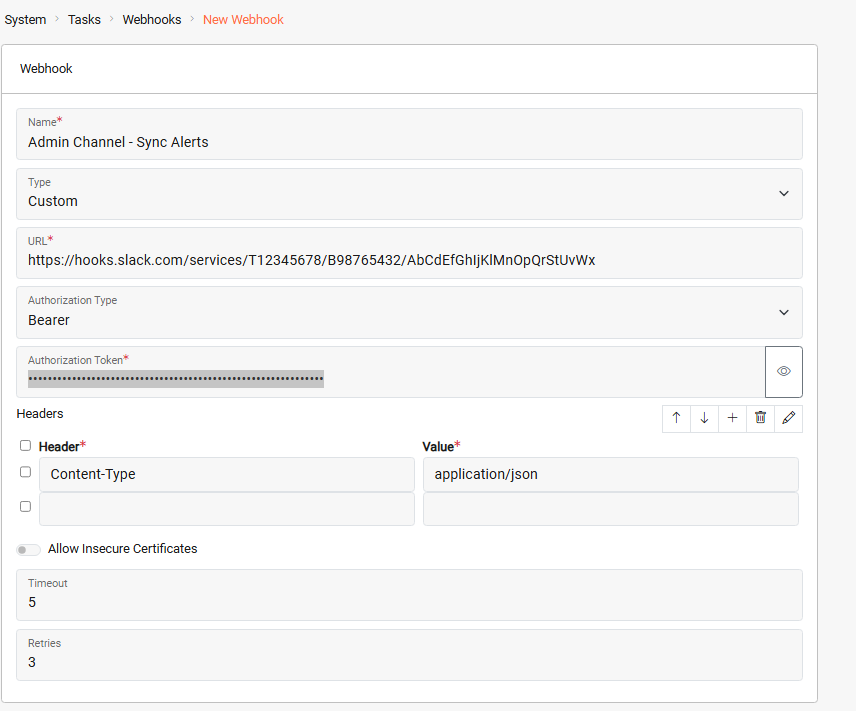
**1. Configure the Webhook**
The webhook defines the target URL and authentication method required by the external Slack system.
***System > Tasks Dashboard > New Webhook***
 {% endhint %}
{% hint style="info" %}
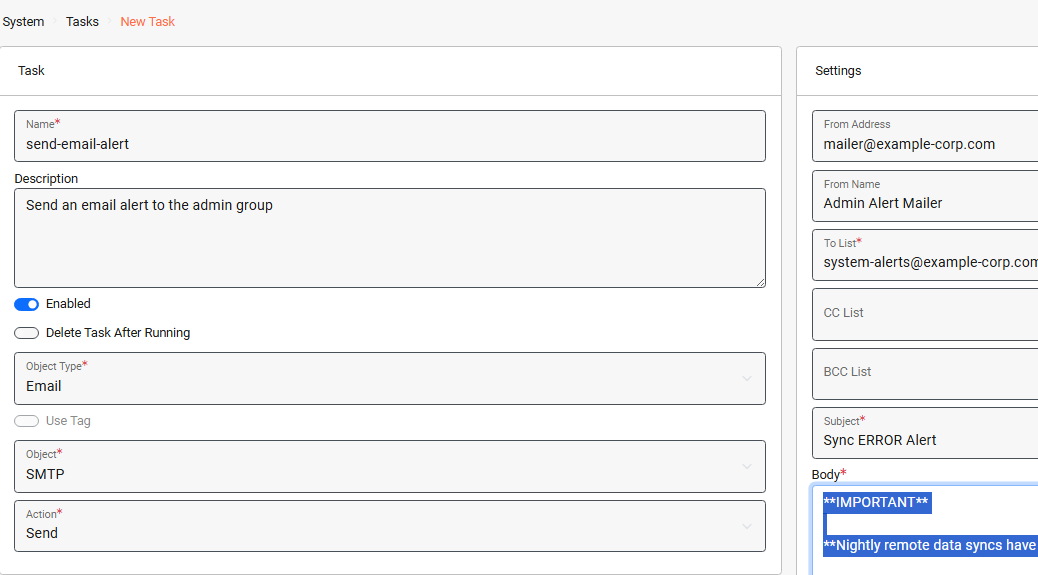
**2. Create a Task to Send the Email**
This task defines the email alert that will be sent.
***System > Tasks Dashboard > New Task***
{% endhint %}
{% hint style="info" %}
**2. Create a Task to Send the Email**
This task defines the email alert that will be sent.
***System > Tasks Dashboard > New Task***
 {% endhint %}
{% hint style="info" %}
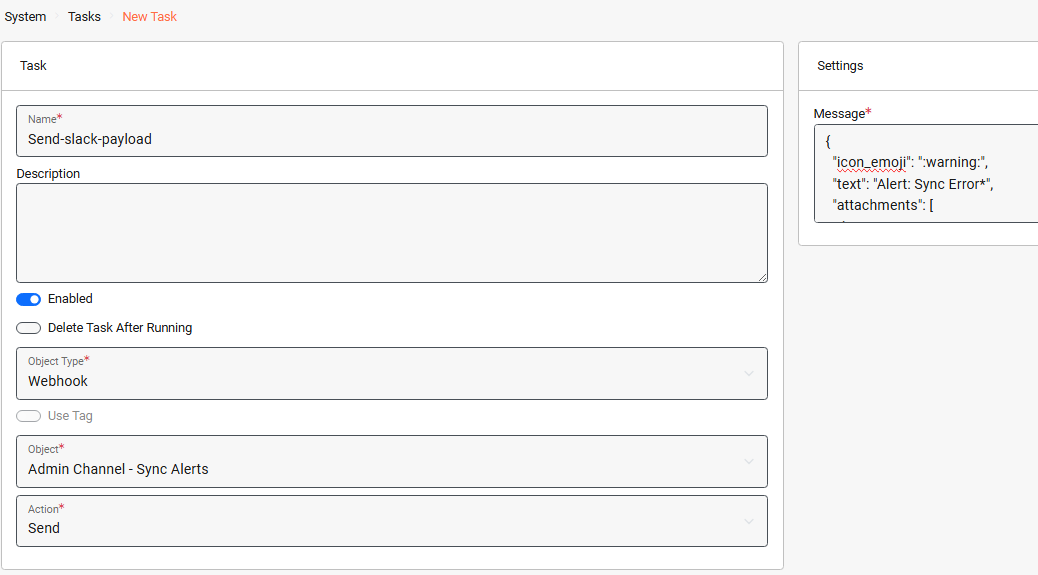
**3. Create a Task to Send the Webhook**
This task defines the message payload that will be sent to Slack via the webhook.
***System > Tasks Dashboard > New Task***
{% endhint %}
{% hint style="info" %}
**3. Create a Task to Send the Webhook**
This task defines the message payload that will be sent to Slack via the webhook.
***System > Tasks Dashboard > New Task***
 {% endhint %}
{% hint style="info" %}
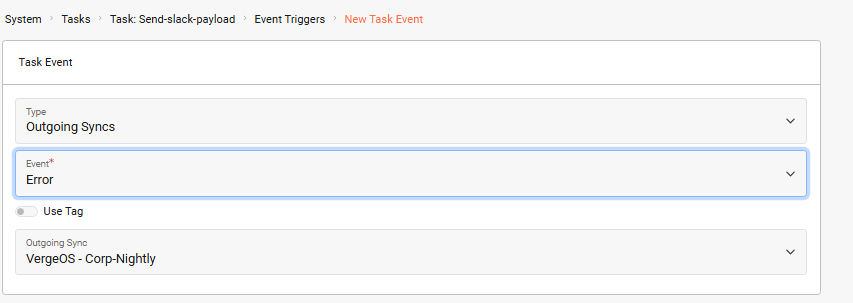
**4. Assign an Event Trigger to the *****Send-slack-payload***** Task**
Assigning an event trigger allows us to specify the condition (a sync error) that will fire the task.
From the *Send-slack-payload* task dashboard: ***Event Triggers > New***
{% endhint %}
{% hint style="info" %}
**4. Assign an Event Trigger to the *****Send-slack-payload***** Task**
Assigning an event trigger allows us to specify the condition (a sync error) that will fire the task.
From the *Send-slack-payload* task dashboard: ***Event Triggers > New***
 {% endhint %}
{% hint style="info" %}
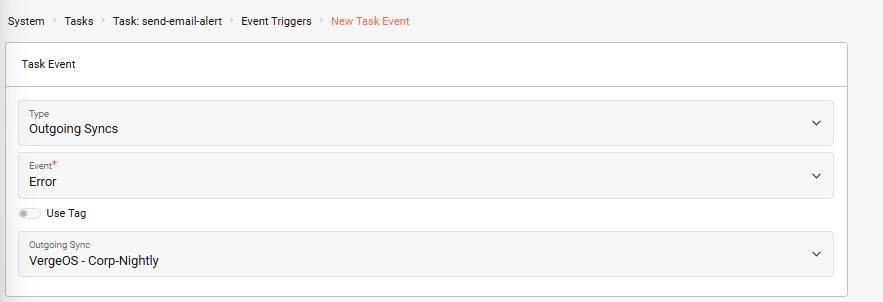
**5. Assign an Event Trigger to the *****'send-email-alert'***** Task**
We apply the same event trigger to this task so that the email alert is also sent when there is a sync error.
***System > Tasks Dashboard > Tasks >*** select the *send-email-alert* task ***> Event Triggers > New***
{% endhint %}
{% hint style="info" %}
**5. Assign an Event Trigger to the *****'send-email-alert'***** Task**
We apply the same event trigger to this task so that the email alert is also sent when there is a sync error.
***System > Tasks Dashboard > Tasks >*** select the *send-email-alert* task ***> Event Triggers > New***
 {% endhint %}
This automation ensures that administrators are notified immediately when a sync job encounters an error, allowing them to act promptly, providing the best chance to resolve the issue before the synchronization window closes.
{% hint style="success" %}
**Triggers Based on Multiple Objects**
In this example, the trigger is tied to a single outgoing sync. If you want the same trigger to apply to multiple, or even all, outgoing sync jobs, assign a shared [Tag](/run-the-platform/system-administration/tags.md) to those syncs. You can then configure the trigger to fire whenever any sync with that tag produces an error.
{% endhint %}
## Troubleshooting
{% hint style="warning" %}
**Common Issues**
* **Webhook not firing**: Verify the webhook URL is correct and the external service (Slack) is accessible from your VergeOS environment.
* **Email not received**: Check that SMTP settings are properly configured under System > Settings > SMTP.
* **Event trigger not activating**: Ensure the trigger is assigned to the correct sync object and the event type is set to "Error".
{% endhint %}
## Additional Resources
* [Task Engine Overview](/automate-protect-and-extend/automation/task-engine.md)
* [Configuring Webhooks](/automate-protect-and-extend/automation/webhooks.md)
* [Working with Tags](/run-the-platform/system-administration/tags.md)
* [SMTP Configuration](/run-the-platform/system-administration/smtp.md)
## Feedback
{% hint style="info" %}
**Need Help?**
If you need further assistance or have any questions about this article, please don't hesitate to reach out to the [VergeOS Support Team](/support-and-services.md).
{% endhint %}
---
# Agent Instructions
This documentation is published with GitBook. GitBook is the documentation platform designed so that both humans and AI agents can read, navigate, and reason over technical content effectively. Learn more at gitbook.com.
## Querying This Documentation
If you need additional information that is not directly available in this page, you can query the documentation by asking a question.
Perform an HTTP GET request on the following URL with the `ask` and `goal` query parameters:
```
GET https://docs.verge.io/knowledge-base/automation-api/automated-task-example-webhook.md?ask=&goal=
```
`ask` is the immediate question: it should be specific, self-contained, and written in natural language.
`goal` is what the user is ultimately trying to achieve, the reason they need the answer. Sharing it helps GitBook give you a better, more relevant answer. A goal is most helpful when it describes the outcome the user wants rather than restating the question. For example, with `ask=how do I create an API token`, a goal like `automate deployments from our CI pipeline` lets GitBook tailor the answer to that use case.
The response will contain a direct answer to the question and relevant excerpts and sources from the documentation.
Use this mechanism when the answer is not explicitly present in the current page, you need clarification or additional context, or you want to retrieve related documentation sections.
{% endhint %}
This automation ensures that administrators are notified immediately when a sync job encounters an error, allowing them to act promptly, providing the best chance to resolve the issue before the synchronization window closes.
{% hint style="success" %}
**Triggers Based on Multiple Objects**
In this example, the trigger is tied to a single outgoing sync. If you want the same trigger to apply to multiple, or even all, outgoing sync jobs, assign a shared [Tag](/run-the-platform/system-administration/tags.md) to those syncs. You can then configure the trigger to fire whenever any sync with that tag produces an error.
{% endhint %}
## Troubleshooting
{% hint style="warning" %}
**Common Issues**
* **Webhook not firing**: Verify the webhook URL is correct and the external service (Slack) is accessible from your VergeOS environment.
* **Email not received**: Check that SMTP settings are properly configured under System > Settings > SMTP.
* **Event trigger not activating**: Ensure the trigger is assigned to the correct sync object and the event type is set to "Error".
{% endhint %}
## Additional Resources
* [Task Engine Overview](/automate-protect-and-extend/automation/task-engine.md)
* [Configuring Webhooks](/automate-protect-and-extend/automation/webhooks.md)
* [Working with Tags](/run-the-platform/system-administration/tags.md)
* [SMTP Configuration](/run-the-platform/system-administration/smtp.md)
## Feedback
{% hint style="info" %}
**Need Help?**
If you need further assistance or have any questions about this article, please don't hesitate to reach out to the [VergeOS Support Team](/support-and-services.md).
{% endhint %}
---
# Agent Instructions
This documentation is published with GitBook. GitBook is the documentation platform designed so that both humans and AI agents can read, navigate, and reason over technical content effectively. Learn more at gitbook.com.
## Querying This Documentation
If you need additional information that is not directly available in this page, you can query the documentation by asking a question.
Perform an HTTP GET request on the following URL with the `ask` and `goal` query parameters:
```
GET https://docs.verge.io/knowledge-base/automation-api/automated-task-example-webhook.md?ask=&goal=
```
`ask` is the immediate question: it should be specific, self-contained, and written in natural language.
`goal` is what the user is ultimately trying to achieve, the reason they need the answer. Sharing it helps GitBook give you a better, more relevant answer. A goal is most helpful when it describes the outcome the user wants rather than restating the question. For example, with `ask=how do I create an API token`, a goal like `automate deployments from our CI pipeline` lets GitBook tailor the answer to that use case.
The response will contain a direct answer to the question and relevant excerpts and sources from the documentation.
Use this mechanism when the answer is not explicitly present in the current page, you need clarification or additional context, or you want to retrieve related documentation sections.